
AI Drone Video Generator
Upload multiple views, choose a flight path and build a wide, cinematic aerial shot—no physical drone or agent chat required.
Wide views built around a clear flight purpose
Every frame starts with spatial context: terrain, streets, coastline or the full route around the subject. These are still-image previews; video files will be added later.
A complete aerial workflow, not one camera-motion button
The flight path is only one dimension. Framing, scene integrity, delivery, rights, compute visibility and iteration all shape whether the result is useful.
Build for the destination, not just the preview
Aspect ratio selection
Choose vertical 9:16, landscape 16:9 or square 1:1 before generation so camera direction is composed for the final frame.
Adaptive crop and outpainting
The framing plan preserves the aerial subject as ratios change, extending scenery when needed instead of cutting a skier, car, property or landmark in half.
One-click platform presets
Prepare bitrate, format and dimensions for WeChat Moments, Douyin, Xiaohongshu, YouTube or Bilibili, with a delivery-ready export plan.
5, 15 or 30-second timing
Set a sharp five-second beat, a social-ready 15-second shot or a 30-second narrative flight with camera pacing tied to the chosen length.
Direct the flight without writing pilot jargon
10+ flight-path presets
Start with dive, orbit, flyover, weave-through or pull-away trajectories built around physically legible aerial movement.
Multi-angle consistency
Generate overhead, low-angle and side-lit views while keeping terrain, buildings, subjects and light relationships coherent across versions.
Prompt precision and negative controls
Turn plain-language direction into a structured aerial brief, then filter distortion, jitter, blur, unwanted objects and unstable horizons.
Light, weather and atmosphere
Rebuild a source into golden-hour sunset, morning fog, clear sky or night while accounting for believable aerial shadows and reflections.
Keep wide aerial scenes clean under motion
1080p and 4K enhancement
Restore fine textures in trees, façades, roads, snow and water after large camera moves, with output targets for HD and large screens.
24fps or 60fps motion
Choose cinematic cadence or fast action smoothness, supported by optical-flow planning that targets shake and rolling, jelly-like deformation.
Perspective correction
Stabilize tall buildings and broad terrain to reduce leaning towers, collapsed structures, stretched ground and broken vanishing lines.
Local masks and motion regions
Mark fixed backgrounds and moving subjects so waves, vehicles or athletes can move without forcing every part of the frame to drift.
Know what you receive and what it costs
Watermark-free commercial output
Plan clean exports and keep the applicable AI commercial-use authorization with the project, subject to rights in uploaded people, brands and media.
Matched aerial sound
Pair the visual plan with rotor wind, ocean, mountain or city ambience and a suitable music direction for a unified aerial sequence.
File-size optimization
Target efficient encoding without needless quality loss and avoid the upload thresholds that can trigger harsh second-pass platform compression.
Transparent compute and queue
See generation progress and estimated time; failed jobs are planned for zero charge and a prioritized one-click retry.
Compare, correct and continue on any screen
Cloud version history
Keep every route and angle derived from the same source, then compare versions side by side before choosing an export.
Multilingual prompt parsing
Write natural instructions in your preferred language; the prompt plan maps them to specific aerial camera and rendering terms.
Live preview and one-click retry
Use an early low-resolution frame preview to judge the route, interrupt a wrong move and restart without waiting for a full render.
Mobile and desktop controls
Upload several images, order references, mask regions and adjust camera settings with touch on mobile or a denser desktop workspace.
Different jobs need different aerial decisions
A property marketer, action creator and local shop do not care about the same controls. Each starts from a specific outcome, then maps it to the right inputs and flight plan.
ai yang bisa mengubah foto menjadi video drone
Turn photos into a drone sequence
Indonesian-speaking creators can upload multiple photos, describe the route naturally and keep one location coherent from opening frame to reveal.
google flow video prompt drone around subject
Orbit one subject cleanly
Use the Orbit preset, identify the subject that must remain locked and specify speed, height, duration and negative constraints.
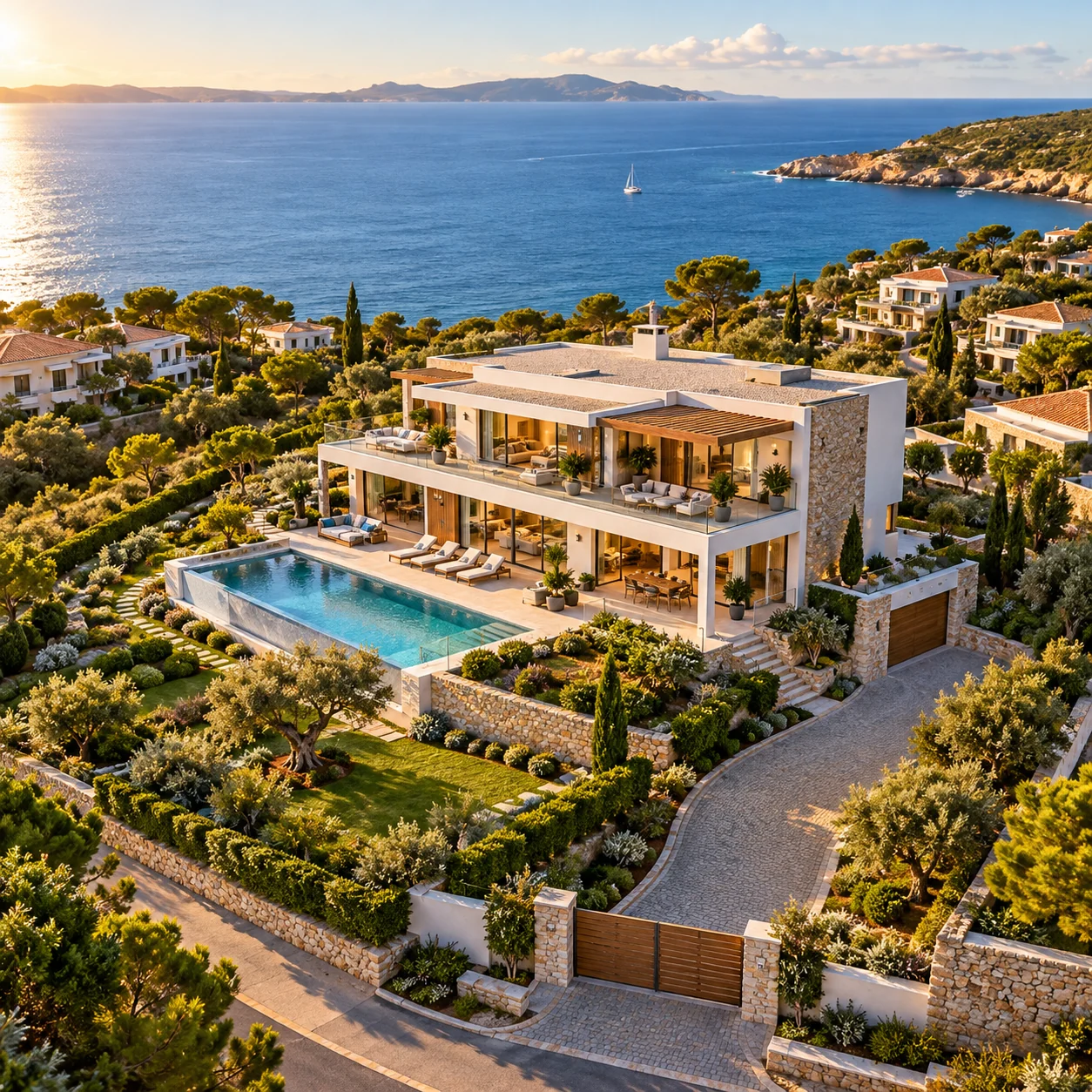
real estate video without drone
Market property without a physical flight
Start from listing photography, preserve building geometry and generate an exterior orbit or neighborhood pull-away where real drone access is limited.
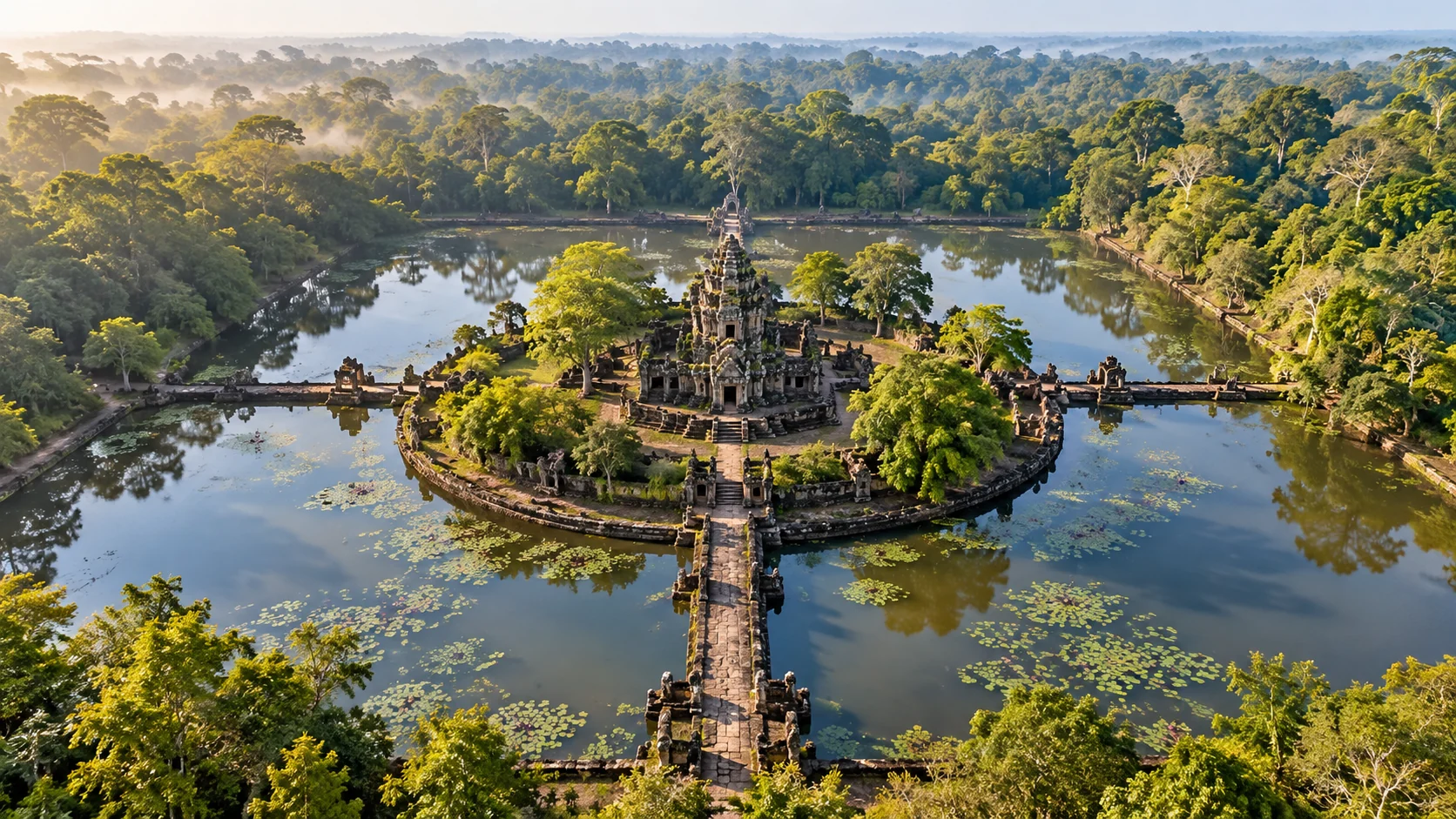
neak poan temple drone video
Reveal landmarks in their setting
Use a wide establishing image and consistency references to keep complex architecture aligned while water, forest and approach routes remain visible.
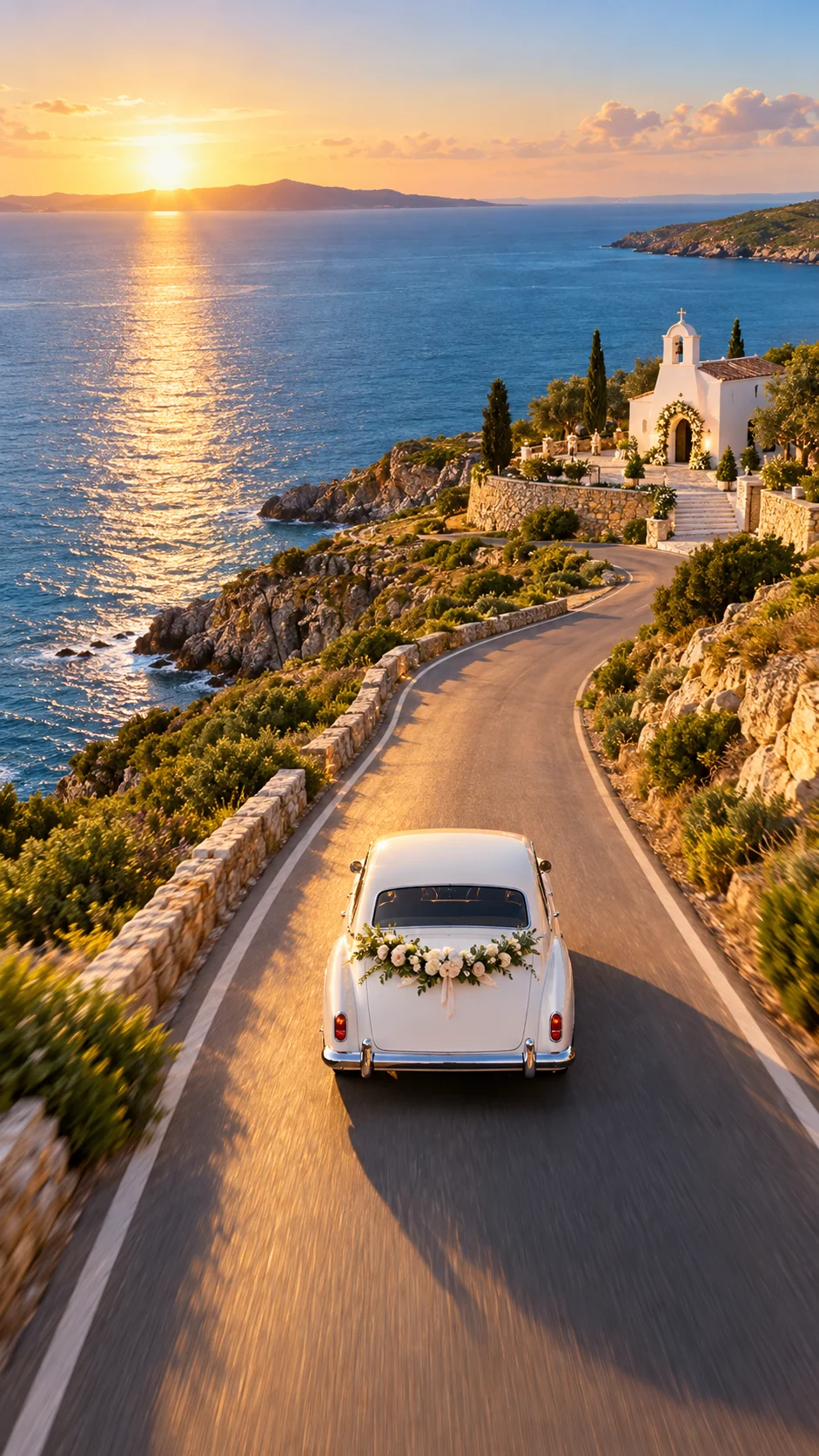
wedding car video drone shoot
Track a commercial event subject
Keep a wedding car recognizable through a vertical coastal follow shot, with controlled elevation and a publish-ready social ratio.
prompt para criar video de drone em um estabelecimento
Approach a local storefront
Portuguese-speaking businesses can describe a neighborhood fly-in that ends at the entrance while signage and street perspective remain stable.
m3 max drone video quality
Prioritize output quality on desktop
The generation runs in the cloud; an M3 Max or another capable computer mainly improves local preview, comparison and editing responsiveness, while 4K remains an output setting.
Give each reference a job
One image can establish the subject, another the surrounding geography, and a third the ending viewpoint. That separation helps an aerial sequence stay expansive without inventing away the details users actually care about.
- Subject anchorLock the skier, vehicle, property or storefront.
- Spatial contextShow the coast, road, block, ridge or water system around it.
- Destination angleDefine where the flyover, orbit or pull-away should finish.
AI drone video generator FAQ
Can I upload more than one image?
Yes. The workspace accepts up to six reference images so you can define the subject, surrounding terrain, destination angle and important details. The current public page previews the workflow locally; generation is not active yet.
How do I turn a photo into a believable drone shot?
Use a source with visible spatial context, identify the subject to preserve, choose a flight path and describe the start, movement and ending reveal. Add negative controls for warped buildings, unstable horizons and unwanted subject drift.
Which aspect ratios are supported?
The interface includes 9:16 vertical, 16:9 landscape and 1:1 square. Adaptive crop and outpainting are designed to keep the important subject in frame rather than blindly cutting the source.
Can I choose a precise drone route?
Yes. Presets include orbit, flyover, dive, weave-through and pull-away, with additional paths planned. You can refine height, speed, direction, duration and the subject lock in the prompt.
Can Capafy AI make a real-estate aerial video without a drone?
The workflow is designed to create a simulated aerial route from rights-cleared property images. It cannot document details that are absent from the references, so accurate multi-angle photos are important for commercial listings.
Does the tool support 4K and 60fps?
The workspace exposes 1080p or 4K output targets and 24fps or 60fps motion targets. Final availability, compute cost and export quality will be shown before generation becomes active.
Will generated drone videos have a watermark?
The planned export is watermark-free. Commercial use still depends on your plan, the selected model and the rights you hold in uploaded images, identifiable people, locations, brands, audio and other inputs.
Is this an autonomous video agent?
No. This is a direct generation workspace: upload references, choose the route and delivery parameters, write the aerial direction, then click Generate Drone Video. It does not open an agent conversation.